

What You'll Learn
Confidently use Google Earth Pro to navigate and map your property.
Drop placemarks, draw lines, and create polygons for real rural features.
Organise your map into clean folders that stay useful for years.
Build a shared, collaborative map in Google My Maps for your group.
Capture field observations on a phone and bring them into your map.
Produce maps that win grants, drive planning, and support monitoring.
Know exactly where to go next if you want to step up to advanced tools.
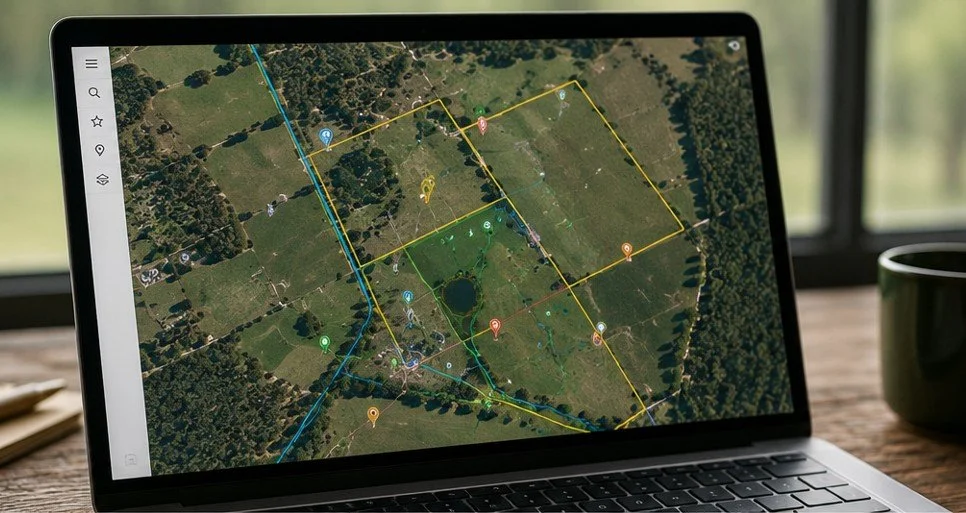
Practical Farm Mapping
Learn to build clear, professional maps of your farm, Landcare project, or community site — using free tools anyone can access. Across three hours of plain-English walkthroughs, you'll master Google Earth Pro and Google My Maps to map paddocks, fences, water, erosion, revegetation sites, and more. No GIS experience needed.
-
-
1.1 Welcome - What You'll Be Able to Do
A warm welcome and a clear promise. In three minutes we'll set out what you'll be able to do by the end of the course — and reassure you about what you don't need. No GIS background, no paid software, no programming. Just a computer and three hours.
A warm welcome and a clear promise. In three minutes we'll set out what you'll be able to do by the end of the course — and reassure you about what you don't need. No GIS background, no paid software, no programming. Just a computer and three hours.
-
1.2 Why Map at All? Real Rural Examples
Before we touch a single tool, here's why mapping is worth your time. We'll look at five real rural maps — a paddock plan, a Landcare revegetation grant map, a fence replacement schedule, an erosion monitoring map, and a weed hotspot map — and what each one achieved.
This is your motivation lesson. By the end, you'll know exactly what you're building toward.
Before we touch a single tool, here's why mapping is worth your time. We'll look at five real rural maps — a paddock plan, a Landcare revegetation grant map, a fence replacement schedule, an erosion monitoring map, and a weed hotspot map — and what each one achieved.
This is your motivation lesson. By the end, you'll know exactly what you're building toward.
-
1.3 The Two Tools We'll Use, and Why
Meet your two tools: Google Earth Pro (your workshop) and Google My Maps (your noticeboard). We'll cover what each one does best, when to use which, and why this combination beats anything you'd pay for.
Meet your two tools: Google Earth Pro (your workshop) and Google My Maps (your noticeboard). We'll cover what each one does best, when to use which, and why this combination beats anything you'd pay for.
-
1.4 Installing Google Earth Pro & Signing in to My Maps
A complete walkthrough of getting set up. We'll download and install Google Earth Pro on Windows or Mac, open it for the first time, sign in to a Google account, and navigate to My Maps. If you don't have a Google account yet, we'll create one in under a minute.
You'll finish this lesson fully set up and ready for Chapter 2.
Downloadable: Install & Setup Cheat Sheet
A complete walkthrough of getting set up. We'll download and install Google Earth Pro on Windows or Mac, open it for the first time, sign in to a Google account, and navigate to My Maps. If you don't have a Google account yet, we'll create one in under a minute.
You'll finish this lesson fully set up and ready for Chapter 2.
Downloadable: Install & Setup Cheat Sheet
-
-
-
2.1 The Earth Pro Screen Explained
A friendly, slow tour of the Earth Pro interface. We'll name each button and panel in plain English — the search bar, the Places panel, the navigation controls, the 3D viewer. By the end, nothing on the screen will look unfamiliar.
Downloadable: Earth Pro Interface Map
A friendly, slow tour of the Earth Pro interface. We'll name each button and panel in plain English — the search bar, the Places panel, the navigation controls, the 3D viewer. By the end, nothing on the screen will look unfamiliar.
Downloadable: Earth Pro Interface Map
-
2.2 Flying Around: Navigation That Makes Sense
Mouse pan, scroll zoom, right-click tilt. Sounds simple, but this is where most beginners get vertigo. We'll go slowly through every navigation move, practise each one twice, and finish with you flying confidently from a town to a paddock.
Mouse pan, scroll zoom, right-click tilt. Sounds simple, but this is where most beginners get vertigo. We'll go slowly through every navigation move, practise each one twice, and finish with you flying confidently from a town to a paddock.
-
2.3 Finding Your Property Reliably
Three reliable ways to find your own property: by address, by GPS coordinates, and by a known landmark. We'll demonstrate each on a real Australian rural property and show you how to save the location so you can come back to it in one click.
Downloadable: 'Find My Property' worksheet
Three reliable ways to find your own property: by address, by GPS coordinates, and by a known landmark. We'll demonstrate each on a real Australian rural property and show you how to save the location so you can come back to it in one click.
Downloadable: 'Find My Property' worksheet
-
2.4 Reading the Landscape: Imagery, Terrain & Historical View
This is the 'wow' lesson. Turn on the 3D terrain and watch the landscape come alive. Then we'll use the historical imagery slider to see your land as it was years ago — revegetation taking hold, dams being built, paddocks changing shape, erosion progressing or healing. It's one of the most powerful features in any free mapping tool, and almost no one knows about it.
This is the 'wow' lesson. Turn on the 3D terrain and watch the landscape come alive. Then we'll use the historical imagery slider to see your land as it was years ago — revegetation taking hold, dams being built, paddocks changing shape, erosion progressing or healing. It's one of the most powerful features in any free mapping tool, and almost no one knows about it.
-
2.5 Measuring Distances and Areas
How long is that fence? How big is that paddock? In this lesson we'll use Earth Pro's ruler tool to measure distances and areas with confidence. We'll switch units to metres and hectares, measure a paddock, a creek run, and a fence line.
Downloadable: Earth Pro Tools Quick Reference
How long is that fence? How big is that paddock? In this lesson we'll use Earth Pro's ruler tool to measure distances and areas with confidence. We'll switch units to metres and hectares, measure a paddock, a creek run, and a fence line.
Downloadable: Earth Pro Tools Quick Reference
-
-
-
3.1 Placemarks: Marking Things That Matter
Your first real act of mapping: dropping a placemark on something that matters. We'll mark a dam, change its icon, write a useful description, then add more — a pump, a trough, a gate, a monitoring site. By the end, your property starts to come alive on the screen.
Downloadable: Suggested Icon Legend for Rural Mapping
Your first real act of mapping: dropping a placemark on something that matters. We'll mark a dam, change its icon, write a useful description, then add more — a pump, a trough, a gate, a monitoring site. By the end, your property starts to come alive on the screen.
Downloadable: Suggested Icon Legend for Rural Mapping
-
3.2 Lines: Fences, Tracks, Creeks & Pipes
Lines are how we capture the long things on a property — fences, tracks, creeks, pipelines. We'll trace a fence, colour it red, then add a track and a creek in their own colours. You'll learn why colour and line thickness matter, and how to set them in a way that makes your map instantly readable.
Lines are how we capture the long things on a property — fences, tracks, creeks, pipelines. We'll trace a fence, colour it red, then add a track and a creek in their own colours. You'll learn why colour and line thickness matter, and how to set them in a way that makes your map instantly readable.
-
3.3 Polygons: Drawing Paddocks and Project Areas
Polygons are how we map areas — paddocks, project sites, erosion zones, revegetation areas. In this lesson you'll draw your first paddock, set the fill colour with transparency (so you can still see the satellite imagery underneath), and add notes about area and use.
This is the lesson where your map stops being a collection of dots and starts looking like a real farm plan.
Polygons are how we map areas — paddocks, project sites, erosion zones, revegetation areas. In this lesson you'll draw your first paddock, set the fill colour with transparency (so you can still see the satellite imagery underneath), and add notes about area and use.
This is the lesson where your map stops being a collection of dots and starts looking like a real farm plan.
-
3.4 Folders & Layers: Keeping Your Map Tidy
A messy map is a map that gets abandoned. In this lesson we'll set up clean folders — Infrastructure, Paddocks, Projects, Monitoring — and drag everything into the right place. You'll learn how to switch whole folders on and off with a single click, which makes a complex map feel simple.
Downloadable: Suggested Folder Structure for a Farm Map
A messy map is a map that gets abandoned. In this lesson we'll set up clean folders — Infrastructure, Paddocks, Projects, Monitoring — and drag everything into the right place. You'll learn how to switch whole folders on and off with a single click, which makes a complex map feel simple.
Downloadable: Suggested Folder Structure for a Farm Map
-
3.5 Saving, Backing Up & Sharing Your Map File
If you only remember one thing from this chapter, remember this: save your map as a KMZ. We'll cover how to save, how to back up (always email it to yourself), and how to open a KMZ that someone else has sent you. Five minutes that protects hours of work.
If you only remember one thing from this chapter, remember this: save your map as a KMZ. We'll cover how to save, how to back up (always email it to yourself), and how to open a KMZ that someone else has sent you. Five minutes that protects hours of work.
-
-
-
4.1 When to Use My Maps vs Earth Pro
A short, clear lesson on which tool to use when. Earth Pro is your private workshop — 3D, powerful, detailed. My Maps is your noticeboard — browser-based, simple, easy to share. Most rural users draw in one and share through the other.
Downloadable: Earth Pro vs My Maps — Which Tool When?
A short, clear lesson on which tool to use when. Earth Pro is your private workshop — 3D, powerful, detailed. My Maps is your noticeboard — browser-based, simple, easy to share. Most rural users draw in one and share through the other.
Downloadable: Earth Pro vs My Maps — Which Tool When?
-
4.2 Creating Your First My Map
We'll head to mymaps.google.com and build a small project map from scratch a revegetation site, a couple of placemarks, a project boundary. You'll get a quick tour of the My Maps interface and try out the different base maps (satellite, terrain, simple).
We'll head to mymaps.google.com and build a small project map from scratch a revegetation site, a couple of placemarks, a project boundary. You'll get a quick tour of the My Maps interface and try out the different base maps (satellite, terrain, simple).
-
4.3 Importing Your Earth Pro Map into My Maps
Take everything you built in Chapter 3 and bring it into My Maps in one go. We'll import the KMZ file, see how the styling transfers, and tidy up anything that needs adjusting.
Take everything you built in Chapter 3 and bring it into My Maps in one go. We'll import the KMZ file, see how the styling transfers, and tidy up anything that needs adjusting.
-
4.4 Sharing With Your Group
View-only or editable? Email or link? Anyone with the link, or specific people only? This lesson covers every sharing option and when to use each. Critical for Landcare groups, grant submissions, and family-run properties.
Downloadable: Group Sharing & Permissions Checklist
View-only or editable? Email or link? Anyone with the link, or specific people only? This lesson covers every sharing option and when to use each. Critical for Landcare groups, grant submissions, and family-run properties.
Downloadable: Group Sharing & Permissions Checklist
-
4.5 Using Your Map on a Phone in the Paddock
Open your shared map on your phone, walk outside, and watch the little blue dot move as you walk. You can now navigate to any placemark — a monitoring site, a gate, a weed hotspot — straight from your phone. We'll also cover what to do when you're heading out of signal range.
Open your shared map on your phone, walk outside, and watch the little blue dot move as you walk. You can now navigate to any placemark — a monitoring site, a gate, a weed hotspot — straight from your phone. We'll also cover what to do when you're heading out of signal range.
-
-
-
5.1 The Field-to-Map Workflow
The complete workflow used by every experienced rural mapper: plan at home, observe in the field, finish at home. We'll walk through each stage and show you why mapping live in the paddock is usually a bad idea — and what to do instead.
Downloadable: Field Workflow One-Pager
The complete workflow used by every experienced rural mapper: plan at home, observe in the field, finish at home. We'll walk through each stage and show you why mapping live in the paddock is usually a bad idea — and what to do instead.
Downloadable: Field Workflow One-Pager
-
5.2 Capturing Field Observations: Photos, GPS, Notes
How to capture good information in the field. We'll cover reading GPS coordinates from a phone (long-press in Google Maps), taking location-tagged photos, and writing observations that still make sense three months later.
Downloadable: Field Observation Form (printable A5)
How to capture good information in the field. We'll cover reading GPS coordinates from a phone (long-press in Google Maps), taking location-tagged photos, and writing observations that still make sense three months later.
Downloadable: Field Observation Form (printable A5)
-
5.3 Worked Example: Mapping an Erosion Monitoring Site
A full end-to-end walkthrough. We'll start with a blank screen and finish with a complete monitoring site map — placemark, polygon for the affected area, description with date and condition, attached photo, saved into the Monitoring folder, screenshot exported.
This lesson stitches together everything from Chapters 2, 3, and 4. If you can do this, you can map anything.
A full end-to-end walkthrough. We'll start with a blank screen and finish with a complete monitoring site map — placemark, polygon for the affected area, description with date and condition, attached photo, saved into the Monitoring folder, screenshot exported.
This lesson stitches together everything from Chapters 2, 3, and 4. If you can do this, you can map anything.
-
5.4 Worked Example: Planning a Fence Replacement
A second worked example, this time for a whole-of-property fence audit. Trace every fence, colour-code by condition (green = good, orange = patch, red = replace), total the metres, and produce a map you can send to a fencing contractor for a quote.
A second worked example, this time for a whole-of-property fence audit. Trace every fence, colour-code by condition (green = good, orange = patch, red = replace), total the metres, and produce a map you can send to a fencing contractor for a quote.
-
-
-
6.1 Building a Map for a Grant Application
Grant assessors look at hundreds of applications. A clear, professional map can be the difference between a yes and a no. We'll build a grant-ready map together project area polygon, site placemarks, title, scale, north arrow then export a clean PDF ready to attach to your application.
Downloadable: Grant-Ready Map Checklist
Grant assessors look at hundreds of applications. A clear, professional map can be the difference between a yes and a no. We'll build a grant-ready map together project area polygon, site placemarks, title, scale, north arrow then export a clean PDF ready to attach to your application.
Downloadable: Grant-Ready Map Checklist
-
6.2 Maps for Planning and Monitoring Over Time
How to build a map that tells a story across years. We'll set up folders by year, layer up the changes (revegetation 2024, revegetation 2025), and look at how a multi-year map becomes a powerful tool for ongoing funding and group reporting.
How to build a map that tells a story across years. We'll set up folders by year, layer up the changes (revegetation 2024, revegetation 2025), and look at how a multi-year map becomes a powerful tool for ongoing funding and group reporting.
-
6.3 Common Beginner Traps and How to Avoid Them
The eight most common mistakes beginners make not saving, messy folders, no naming convention, opaque polygons, wrong sharing permissions, no KMZ backup, wrong tool for the job, never reopening the map and exactly how to avoid each one.
Downloadable: Beginner Troubleshooting Guide
The eight most common mistakes beginners make not saving, messy folders, no naming convention, opaque polygons, wrong sharing permissions, no KMZ backup, wrong tool for the job, never reopening the map and exactly how to avoid each one.
Downloadable: Beginner Troubleshooting Guide
-
6.4 Where to From Here? Your Mapping Pathway
You've done it. Three hours, six chapters, one working map. In this final lesson we'll recap what you've built, congratulate you properly, and lay out the pathway forward terrain analysis, remote sensing, soil mapping, monitoring systems, and light GIS for when this course feels small.
You've done it. Three hours, six chapters, one working map. In this final lesson we'll recap what you've built, congratulate you properly, and lay out the pathway forward terrain analysis, remote sensing, soil mapping, monitoring systems, and light GIS for when this course feels small.
-